Uploaded Icons, Images, Pdfs and Files Caching Explained
How uploaded media from Notion is cached, stored, and served in the website.
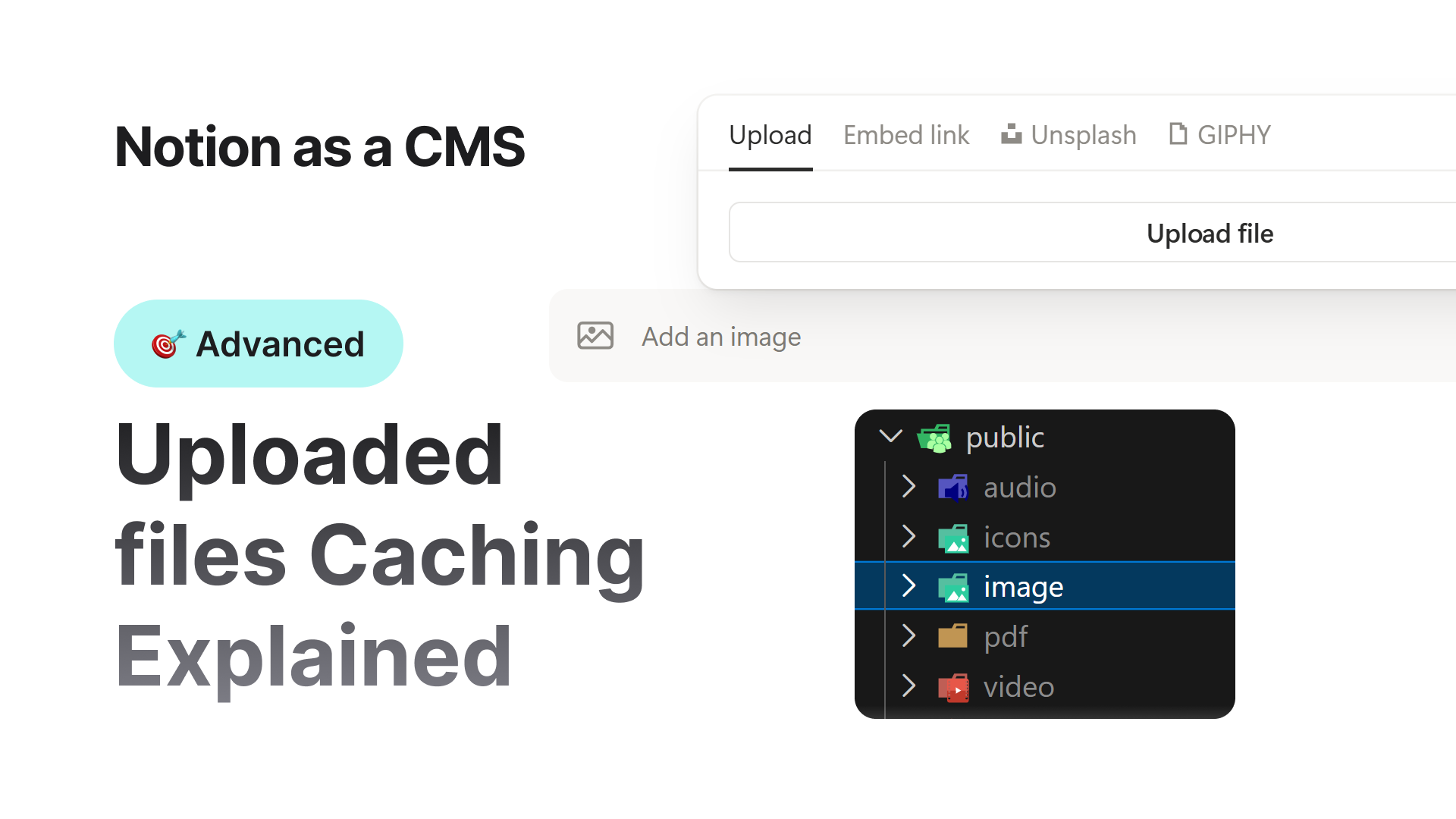

This system uses Next.js for the website and Notion as the database and CMS.
Since Notion URLs expire over time, we use a caching approach for uploaded media so everything stays stable, fast, and permanent on the website.
Below is how caching works for icons, images, videos, files, and PDFs.
1. How Media Uploading Works in Notion
When adding media in Notion, you can:
- Upload files directly
- Paste an external URL
Uploaded media in Notion comes with temporary public links. These URLs expire after around 1 hour if not accessed.
Because of this, we download the file and store it in the project so the link never expires.
Important Notes
- We save files using the original filename
- Make sure filenames are clean, unique, and meaningful
- If a file with the same name already exists, it will not be cached again
Using proper naming helps prevent duplicated stored files.
External URLs
If the media is from an external URL (like a CDN, Cloudinary, or another source), we do not download it. We use the URL directly.
This keeps the build lightweight and improves performance.
 A quick warning
As you upload more large files into Notion:
- The local cache folder gets bigger
- Build times increase, because media must be downloaded again at deployment
- GitHub does not store cached media
So for best performance, it is recommended to use external URLs or a CDN.
2. Icon Caching Rules
| Icon Type | Cached? | Explanation |
|---|---|---|
| Standard emoji | No | Shown using Twemoji CDN |
| Notion default icons | No | We use their cloud URLs |
| External icon URL | No | We use the external source |
| Uploaded custom emoji | No | Their URLs do not expire |
| Uploaded custom icon | Yes | Stored in /public/icons/ |
Favicon assets (like .png, .ico, apple icons) are always stored in /public/ automatically.
3. Image Caching Rules
External Image URL
- We use the original image URL
- We clean unnecessary URL parameters
- We detect and set correct width, height, and responsive srcset
- No layout shift
Uploaded Images
- Stored in
/public/images/ - We detect and set correct width, height,
- No layout shift
- Displayed using Next.js
<Image>component to optimize performance
Note: Using Next.js image optimization on Vercel increases build time, so avoid unnecessary uploads.
4. Video Handling
We try to render videos in the best format depending on source:
| Source Type | Display Method |
|---|---|
| YouTube | Custom lightweight YouTube embed |
| Vimeo | Optimized embed |
| Dailymotion, Facebook, Streamable | Platform embed |
| Uploaded video (mp4/webm/ogg/mov/m4v) | Video tag |
| Other unknown video URLs | iframe |
Uploaded videos are stored inside /public/video/.
5. PDF Handling
PDFs are displayed using a built-in viewer similar to Notion.
- If the PDF is compatible, we load it with a React PDF viewer
- If external URLs block access (CORS issues), we fall back to the Google PDF Viewer
Uploaded PDFs are stored in /public/pdf/.
6. File Handling
Notion also allows adding files or attachments.
- External files → linked directly
- Uploaded files → stored locally
Before saving, our system checks if the file belongs to:
- icons
- images
- videos
- PDFs
If not matched, it is stored in /public/file/.
Summary
This caching system ensures:
- No broken links
- Stable local copies of uploaded content
- Faster website performance
- Automatic handling for icons, images, videos, PDFs, and files
If your media comes from a CDN, use the URL directly.
If it’s uploaded in Notion, our system will cache it and serve it permanently.
 Back
Back