How to Buy, Download, Unzip, and Set Up the Template
This guide shows how to buy the template, download the files after purchase, unzip them, and complete the initial setup.
Posted by@Sujal Vanjare
Published on @
Updated on @

Step 1: Buy and Download the Template
- 2.b.ii.You will be redirected to a secure Polar checkout page.
- 3.c.iii.Enter your email and payment details, then complete the purchase.
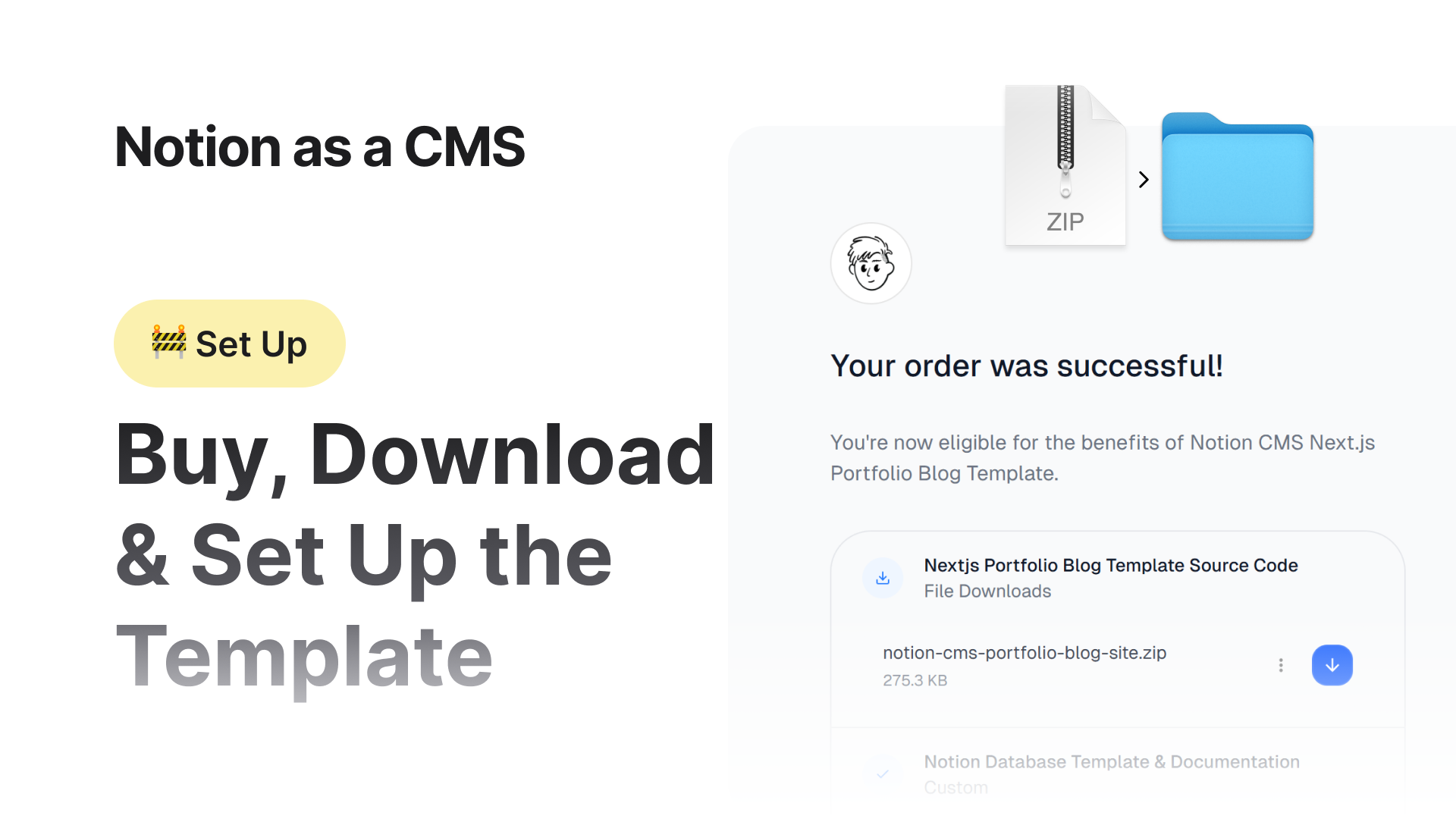
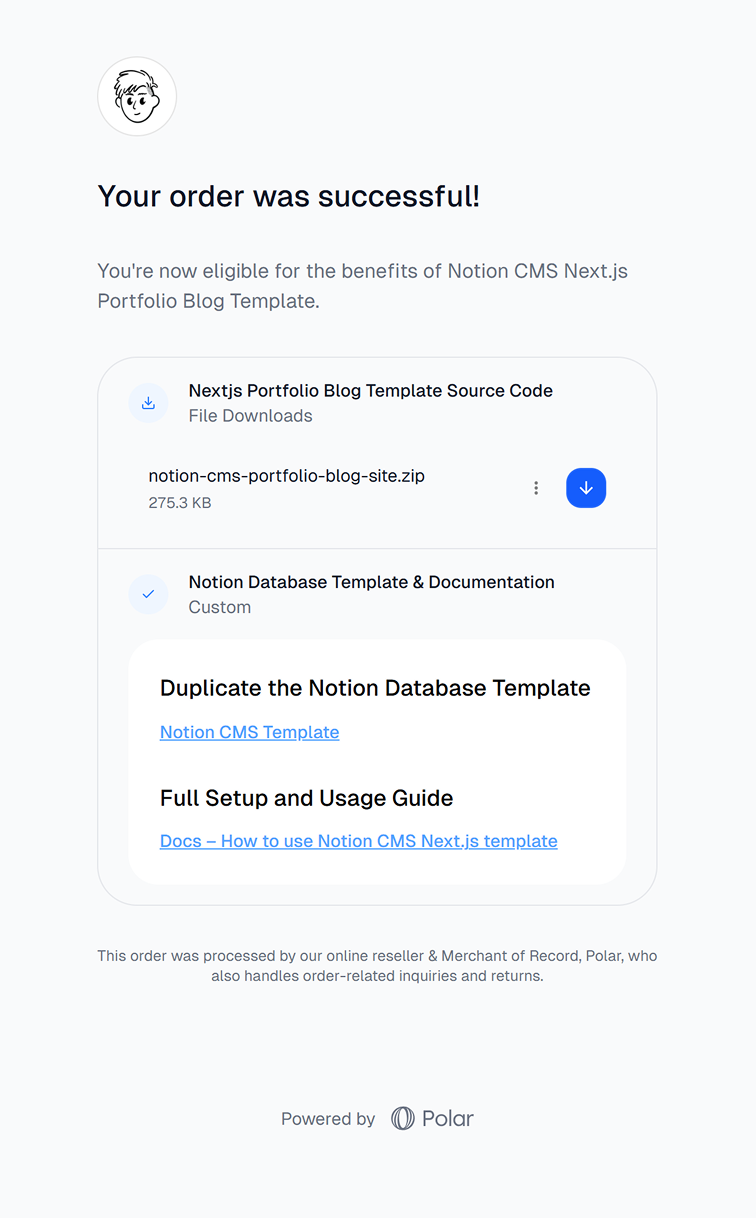
- 4.d.iv.After a successful payment, you will be redirected to an order success page.
- 5.e.v.Click the Download button to save the ZIP file to your computer.
The file is usually saved in your Downloads folder.

If you lose access to the order success page, check your email inbox. You will receive an email containing the download link and purchase details.
Step 2: Unzip the Folder
Windows
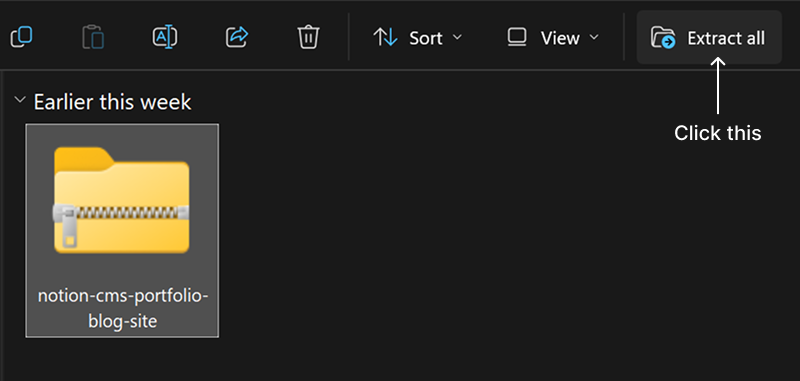
- 1.a.i.Right-click the ZIP file and choose Extract All.
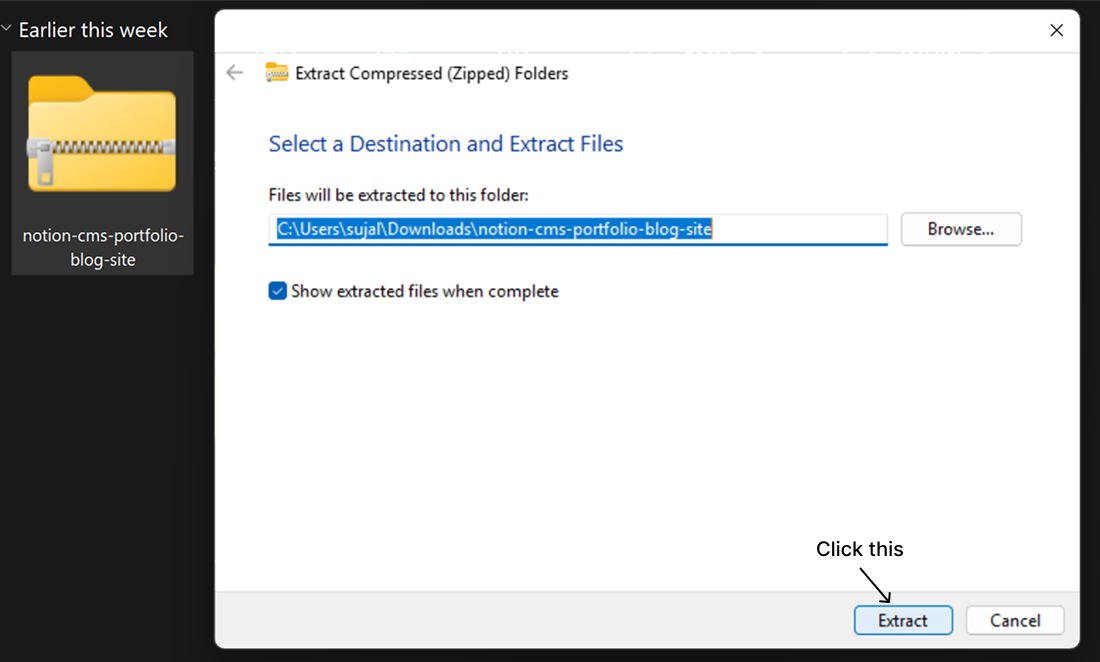
- 2.b.ii.Click Extract.
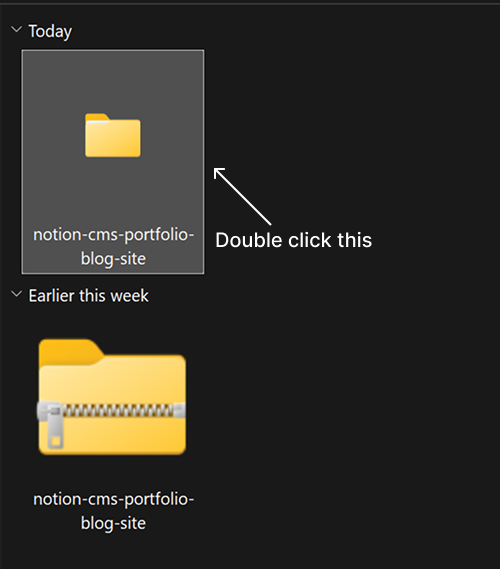
- 3.c.iii.A new folder with the same name will appear.
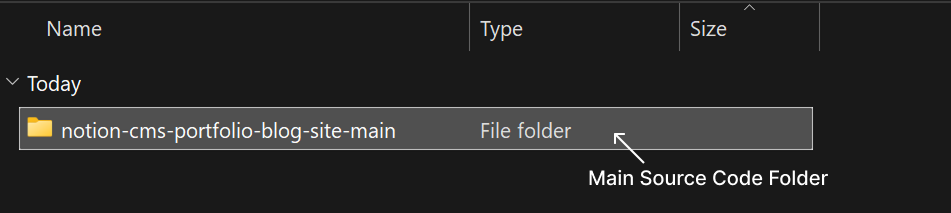
- 4.d.iv.Open that folder - inside it, you’ll see the main project folder named:
macOS
- 1.a.i.Double-click the ZIP file.
- 2.b.ii.It will automatically unzip and create a new folder with the same name.
- 3.c.iii.Open that folder - inside it, you’ll find the actual project folder:
notion-cms-portfolio-blog-site-main
Step 3: Open the Project Folder
Inside notion-cms-portfolio-blog-site-main you should see files like:
Plain Text
/notion-cms-portfolio-blog-site-main
│
├── src/
├── public/
├── package.json
├── README.md
└── ...
That’s your working folder - you’ll open this one in your code editor (like VS Code).
Step 4: Move It (Optional)
You can move the project folder anywhere you prefer, for example:
Documents/Projects/Desktop/NotionCMS/
Step 5: Done
Your project folder is ready.
 Back
Back