


Add Website Domain and Shortname
Set your shortname and website domain so your site has accurate metadata, proper SEO, and correct preview text when shared online.
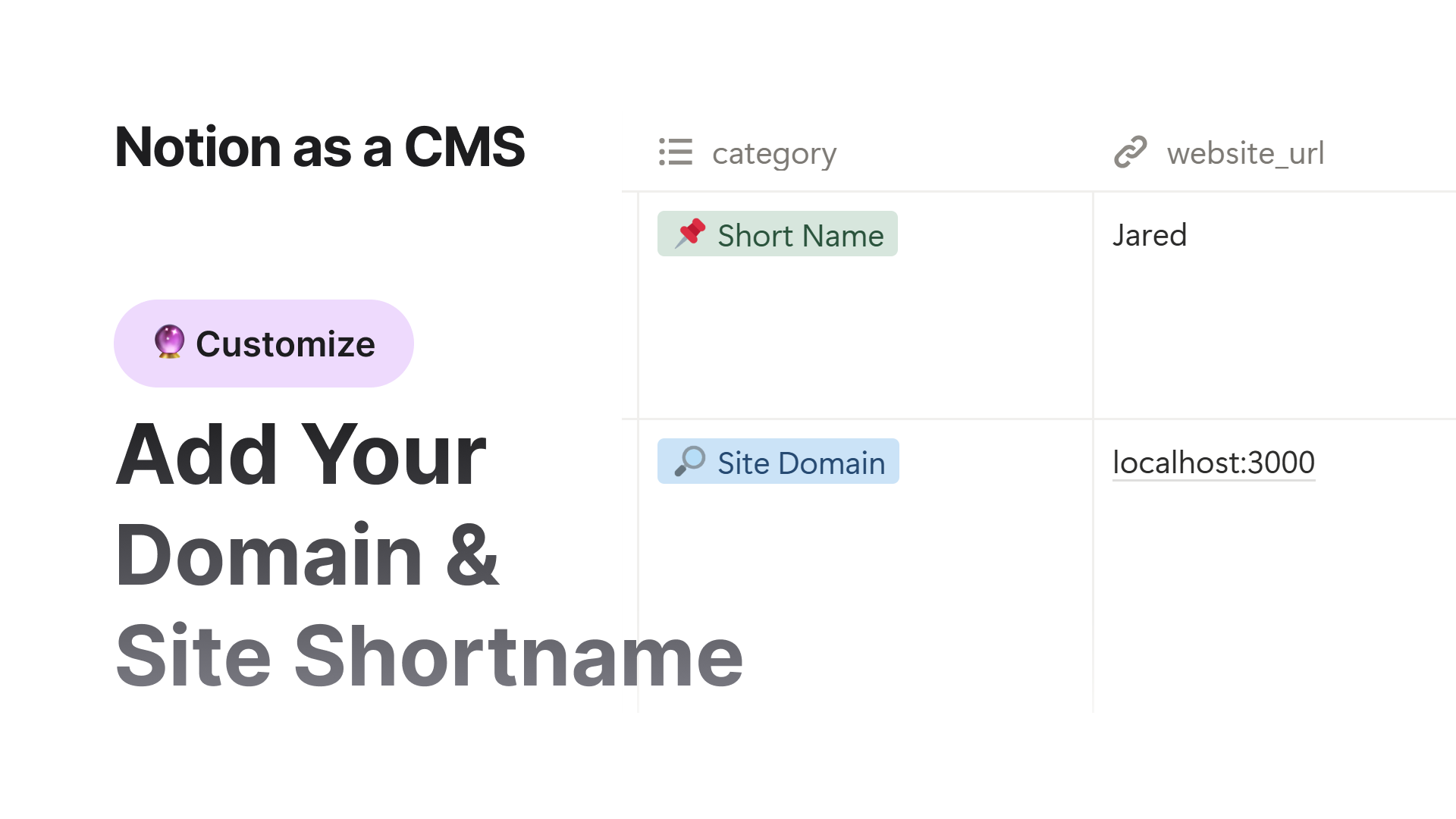

Before you publish your site, you need to set two important values:
- 1.a.i.Your website shortname
- 2.b.ii.Your website domain
These values help generate metadata, SEO tags, and the correct sitemap links.
Step 1: Open the Site Configuration View
Go to your main Notion database.
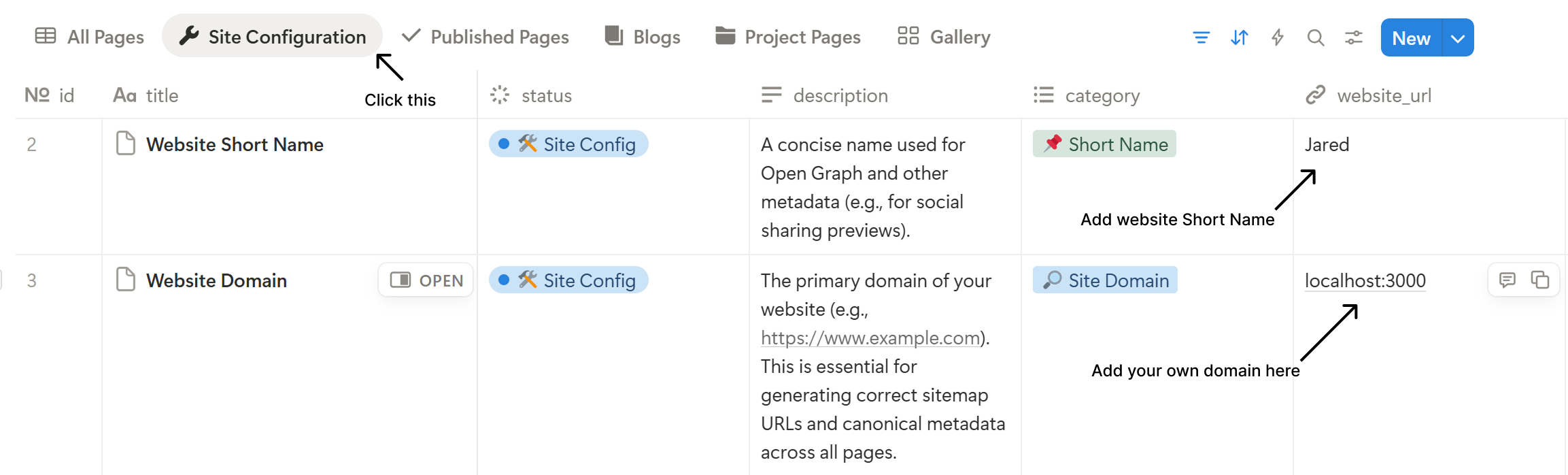
At the top, select Site Configuration from the list of table views.
The first two rows in this view are:
- Website Shortname
- Website Domain
These are the only pages where you will set these values.
Step 2: Set the Website Shortname
Open the page labeled Website Shortname.
This value is used in metadata and Open Graph previews.
It also helps keep title formatting clean across pages.
Examples:
- Jared
- My Portfolio
- Notion CMS
- Design Studio
Find the property named Website URL and type your shortname there.
For example:
JaredOnly pages marked with the category  Short Name are used for this setting.
Step 3: Set the Website Domain
Next, open the page labeled Website Domain.
This should be the full URL of your live site.
It is used for:
- Canonical URLs
- Sitemap generation
- Sharing previews
- SEO tags
Examples:
http://localhost:3000
https://yourname.com
https://portfolio.yourdomain.com
Add your domain in the Website URL property.
Only the page marked with the category  Site Domain is used for this.
Step 4: Done
Once both values are added, your website will automatically use them for all metadata and SEO features.
No extra setup needed.
Your shortname will appear in social previews and metadata.
Your domain will be used to generate proper routing and sitemap links.
Next 

