


Docs - How to use Notion CMS
Complete documentation to set up, manage, and use the Notion CMS with your Next.js website, including database setup, media handling, analytics, SEO, and deployment guides.


Learn how to extract the downloaded project ZIP file and find the actual project folder on your computer.
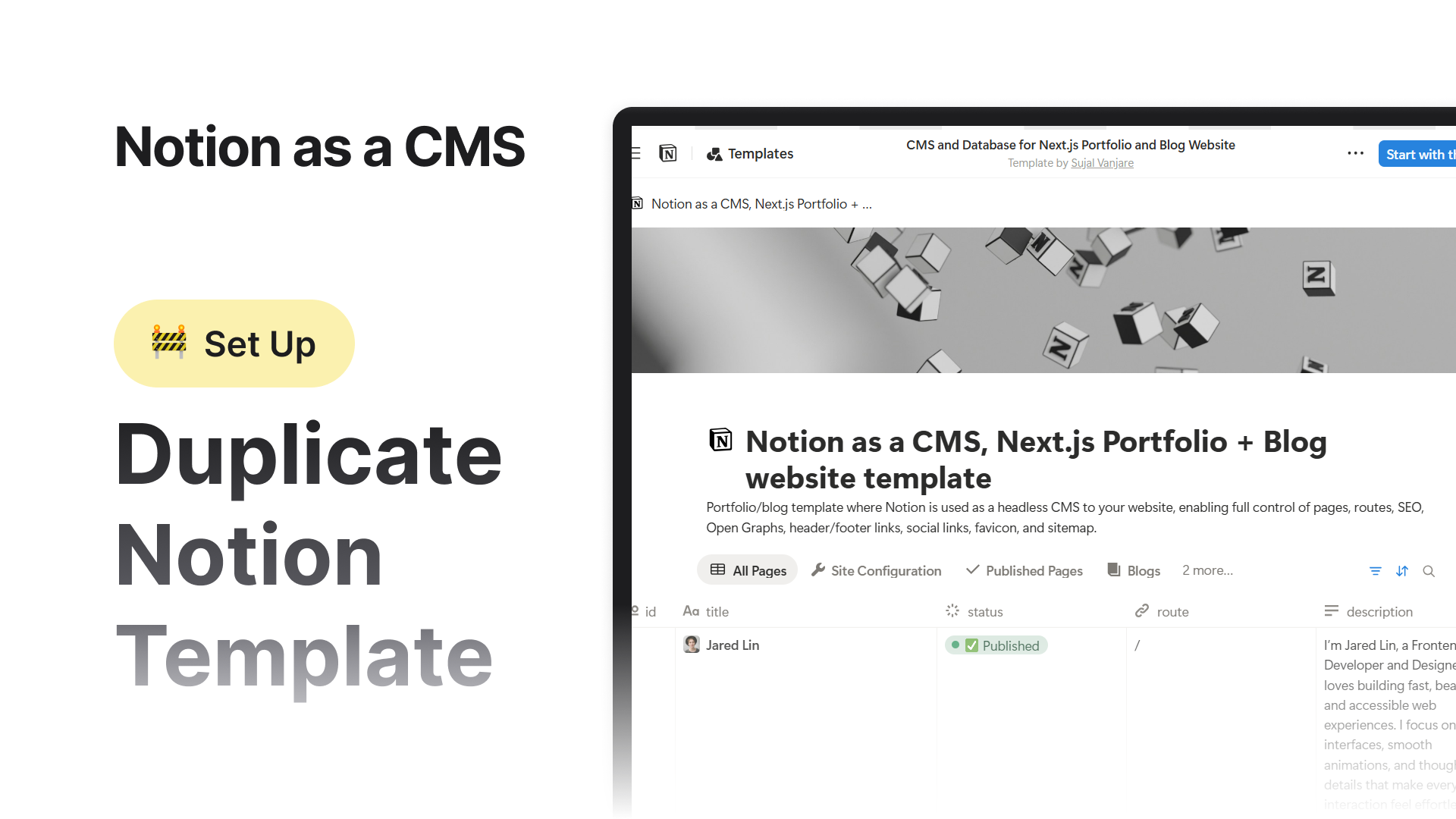


Step by step guide to duplicate the Notion database template into your own workspace after purchase.
In this guide, you’ll learn how to open your project in Visual Studio Code, install everything you need, and start the local development server. If you’re not a developer or new to coding, don’t worry - it’s super easy to follow.


In this guide, you’ll create your Notion integration, get your integration token, and connect it to your Notion database. This will allow your portfolio and blog template to pull content directly from your Notion pages.


In this guide, you’ll learn how to find your Notion database ID (also called the data source ID) and add it to your project’s .env.local file. This connects your local project to your Notion blog database.
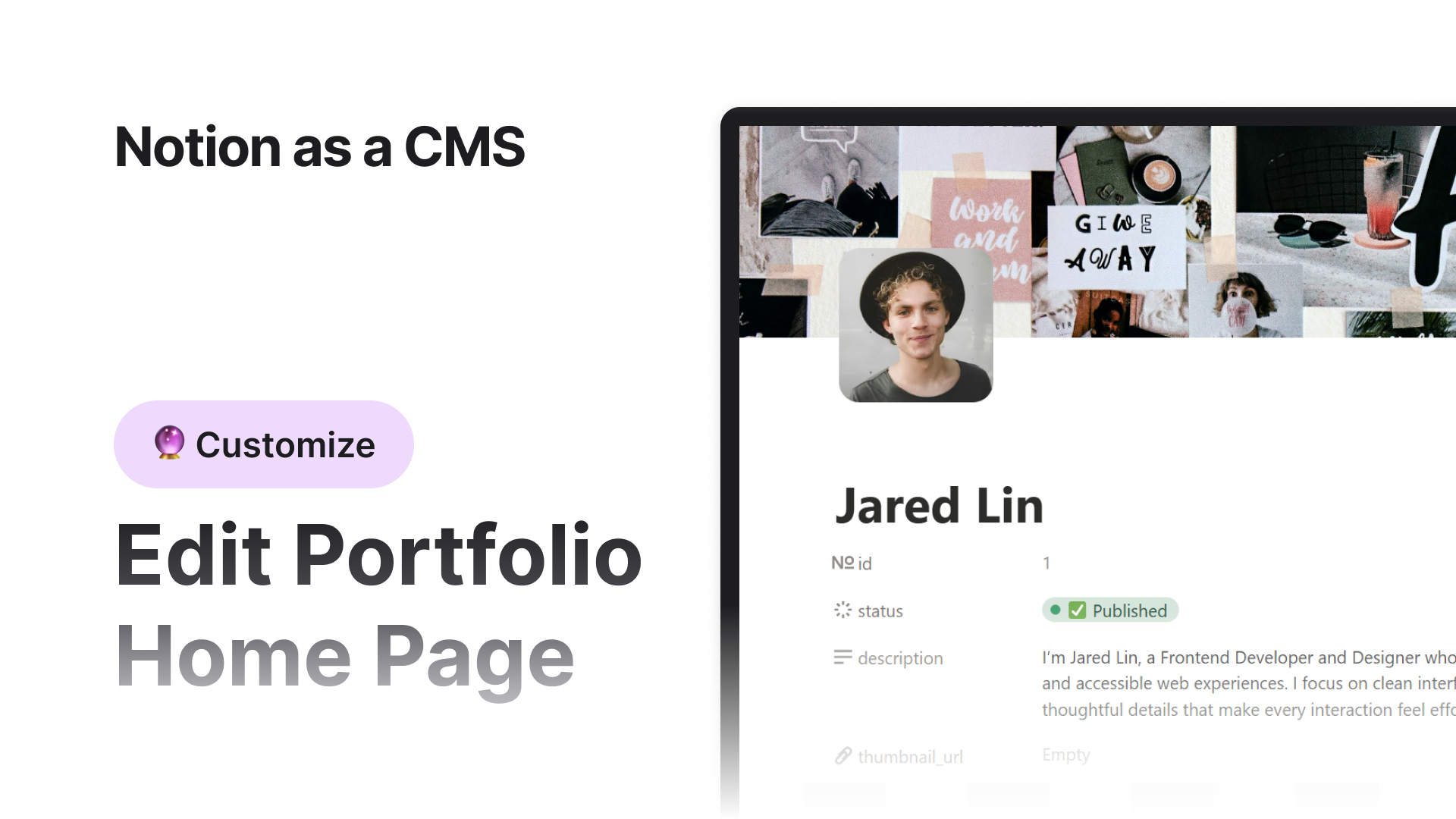


In this guide, you’ll learn how to edit your portfolio home page directly from the Notion database.
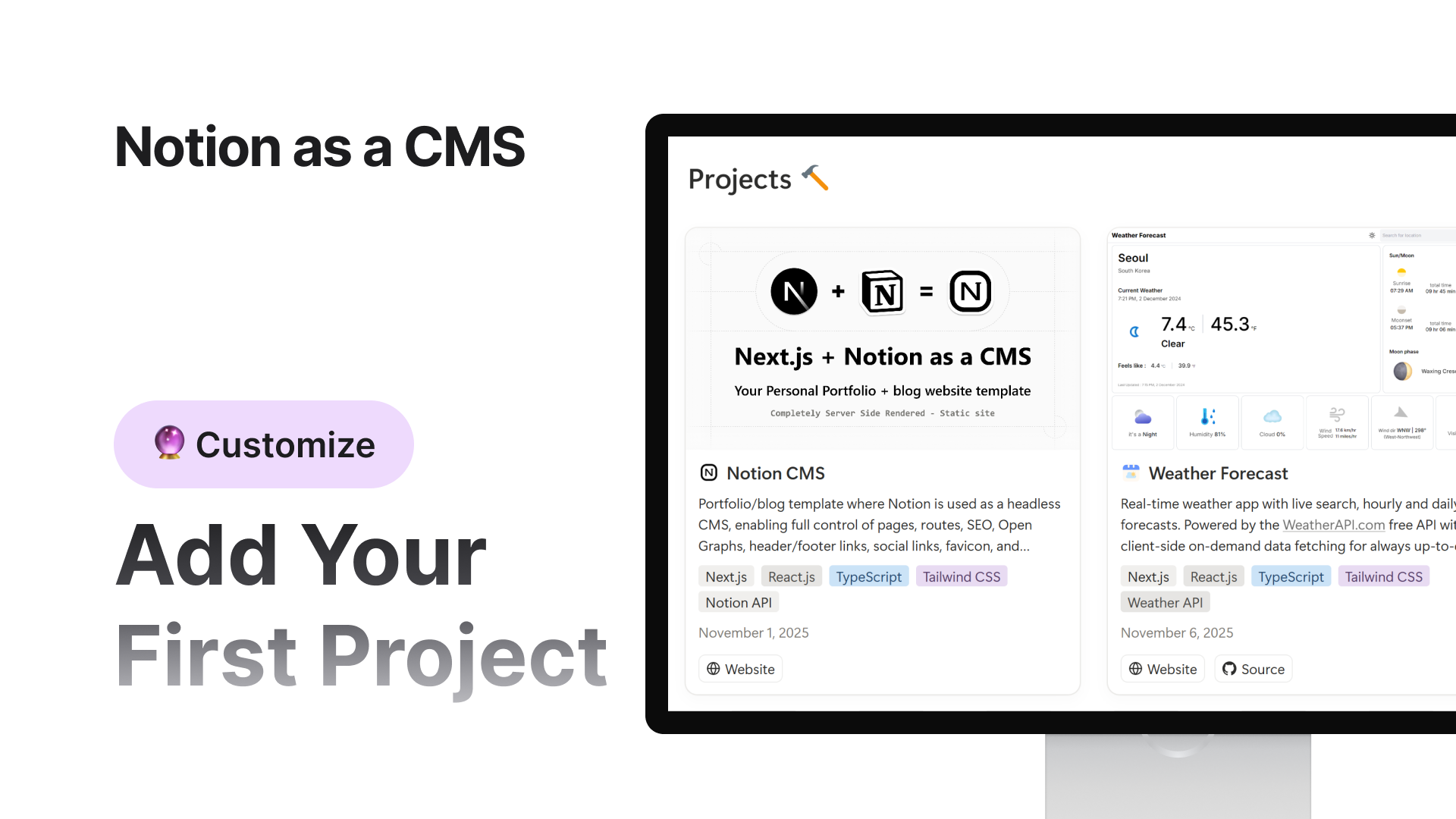


Now that you’ve customized your portfolio home page and added your personal details, it’s time to showcase your projects.
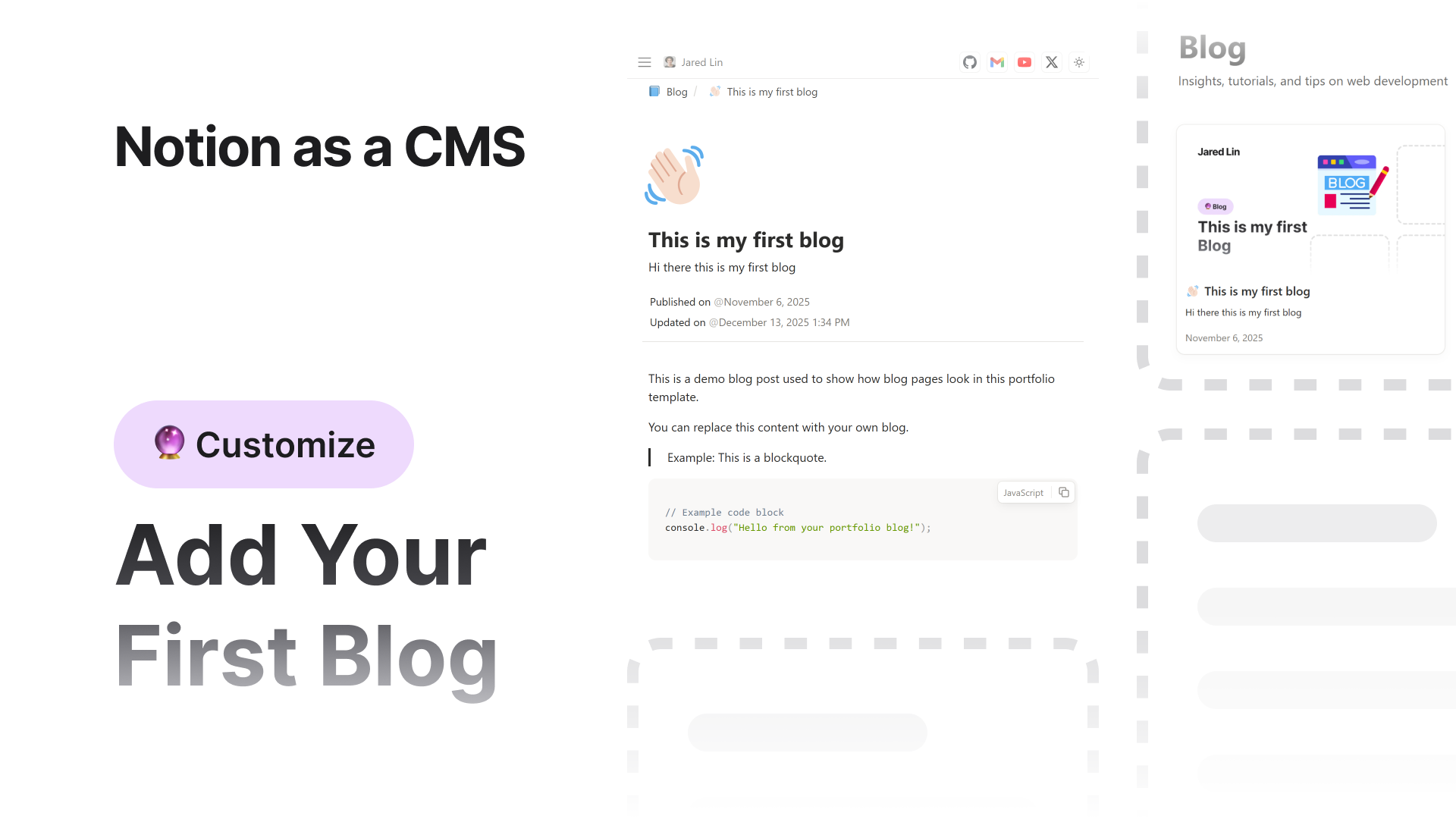


In this guide, you’ll learn how to create and manage blog posts for your Notion CMS–powered portfolio website.
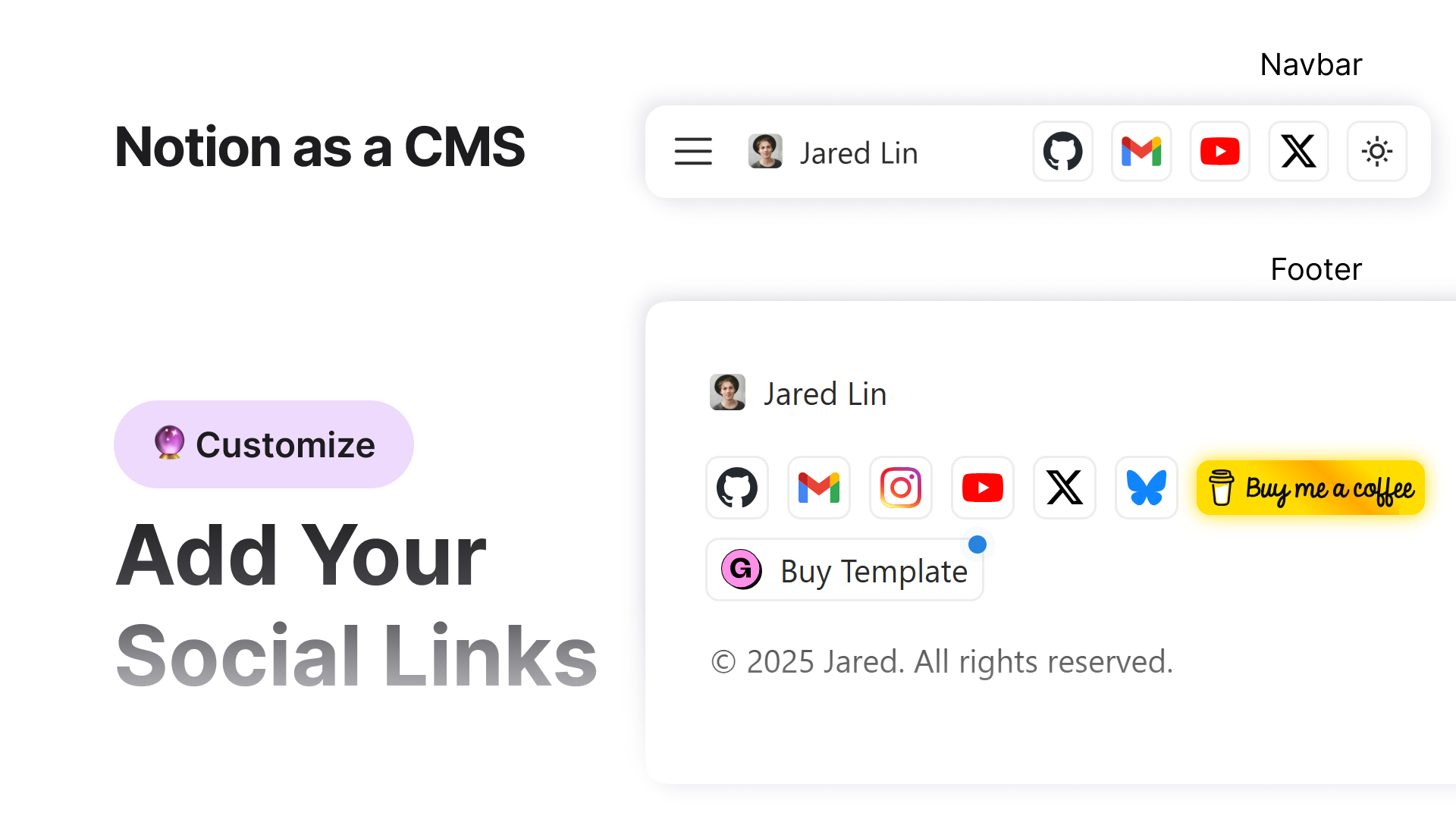


Add your social media links to the navbar, footer, or both. This helps visitors connect with you easily and keeps your portfolio personal and professional.
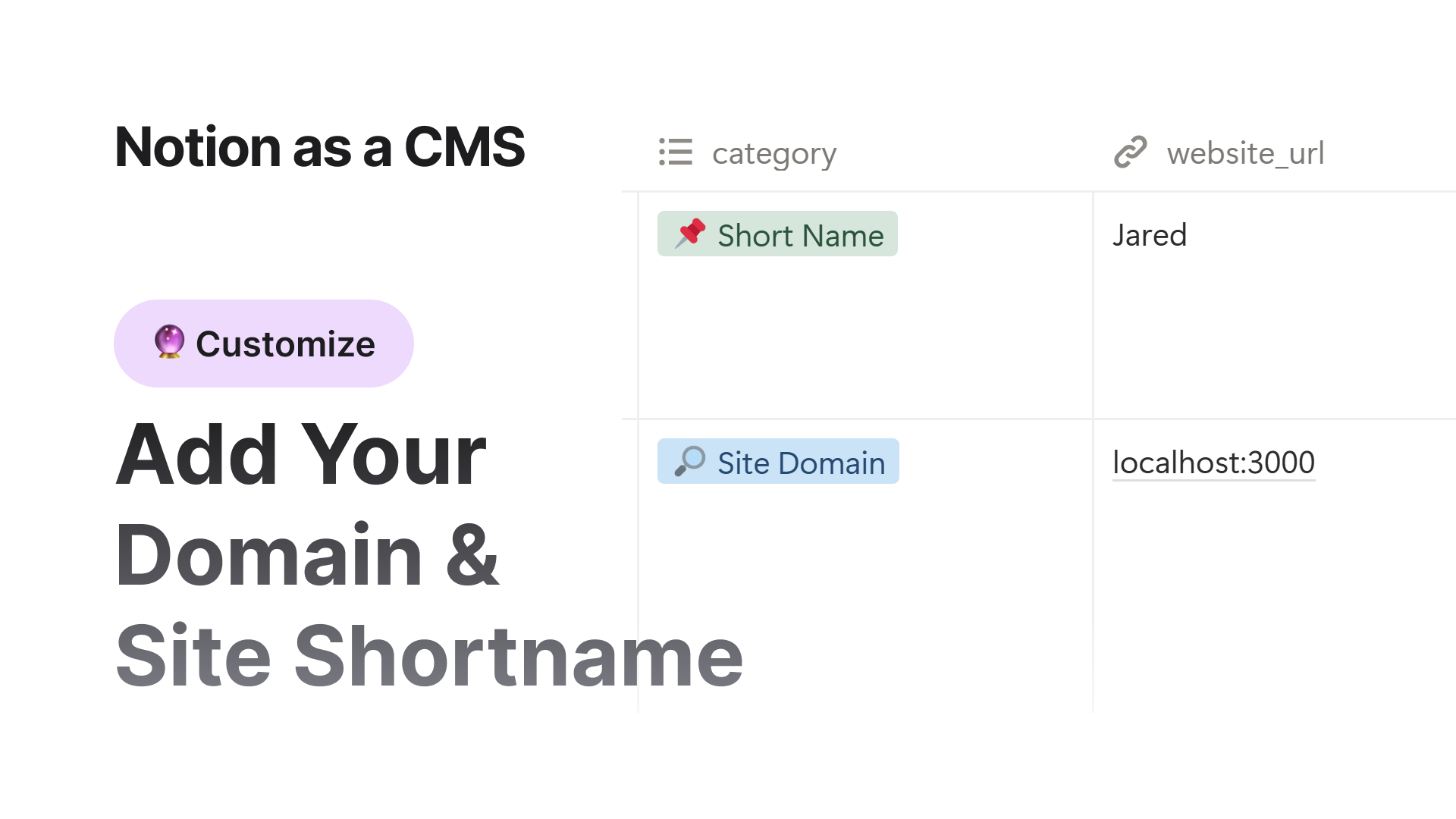


Set your shortname and website domain so your site has accurate metadata, proper SEO, and correct preview text when shared online.


Add favicons to your site so it looks professional in search results, browser tabs, and device shortcuts. This also improves branding and supports SEO.
Every published page needs proper sitemap settings so search engines like Google, Bing, and others can index them correctly. This helps with ranking, crawling priority, and better SEO.
Add structured data and SEO properties so search engines and social sites show your pages correctly.
Learn how to show specific pages as navigation links in the website header or footer.
Learn how to hide page elements from the UI while still keeping them active for SEO, sitemap, and metadata.
Hide the built-in Table of Contents panel if you don’t want it to show for a specific page.
Learn how the default breadcrumb navigation works and how to hide it by using the Hide Page Breadcrumb category.
Learn how to keep a page icon visible in the UI but prevent it from being used as the favicon.
Enable a large visual page icon layout by using the Large Page Icon category.
Learn how to set clean and simple routes for your pages.
How to hide private or unwanted pages from Google search and sitemap.
Learn how to use the thumbnail_url property to enhance pages with images for Open Graph, Google, and UI presentation.
How uploaded media from Notion is cached, stored, and served in the website.
Add Google Analytics or Google Tag Manager tracking to your website by setting one environment variable. No coding required.
Learn how to enable Vercel Analytics and Speed Insights using simple environment variables and the Vercel dashboard.
Full guide to prepare your project, install Git and GitHub, push the project to your repository, connect Vercel, add environment variables, and deploy your website online.