Duplicate the Notion Database Template
Step by step guide to duplicate the Notion database template into your own workspace after purchase.
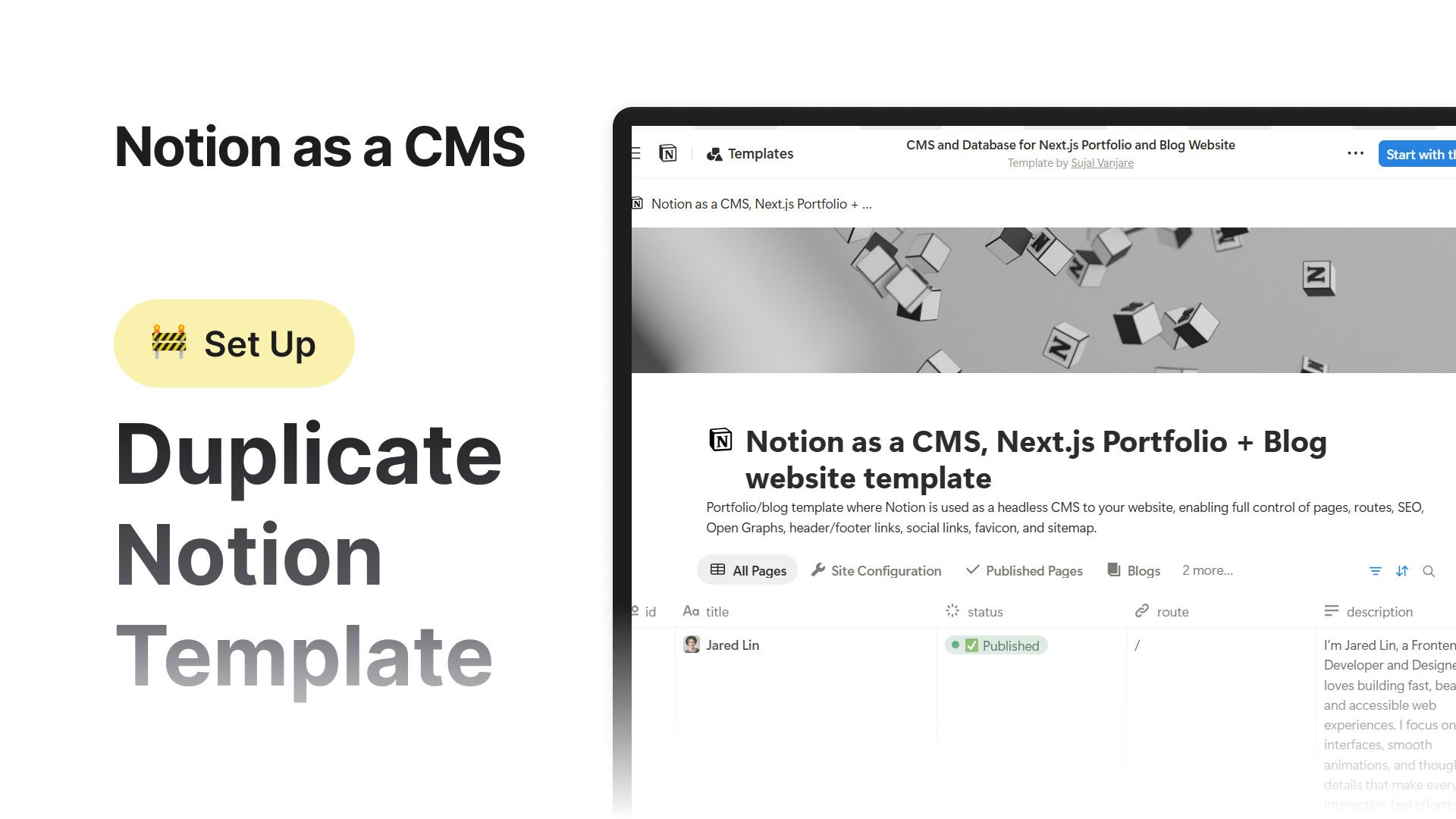

Once you buy the template, you will receive a Notion template link. You just need to duplicate it into your own Notion workspace. The process is very simple and takes only a few seconds.
Step 1. Open the Template Link
Open the Notion template link  in your browser.
A tool that connects everyday work into one space. It gives you and your teams AI tools—search, writing, note-taking—inside an all-in-one, flexible workspace.
Make sure you are already logged into your Notion account.
If you are not logged in, Notion will ask you to sign in first.
Step 2. Click “Start with this template”
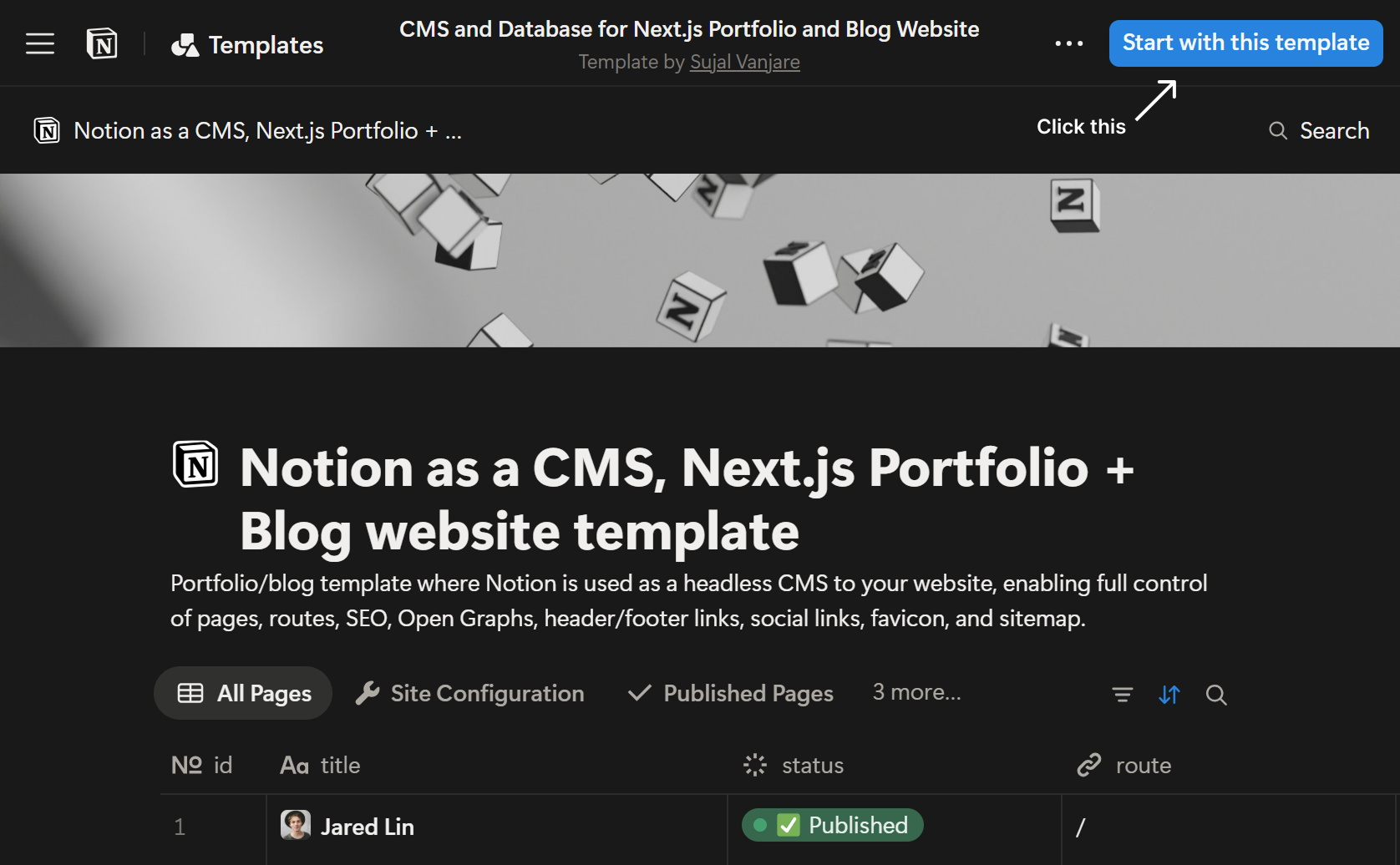
After the page loads, look at the top right corner.
You will see a blue button with the text:
Start with this template
Click that button.
Step 3. Select Your Workspace
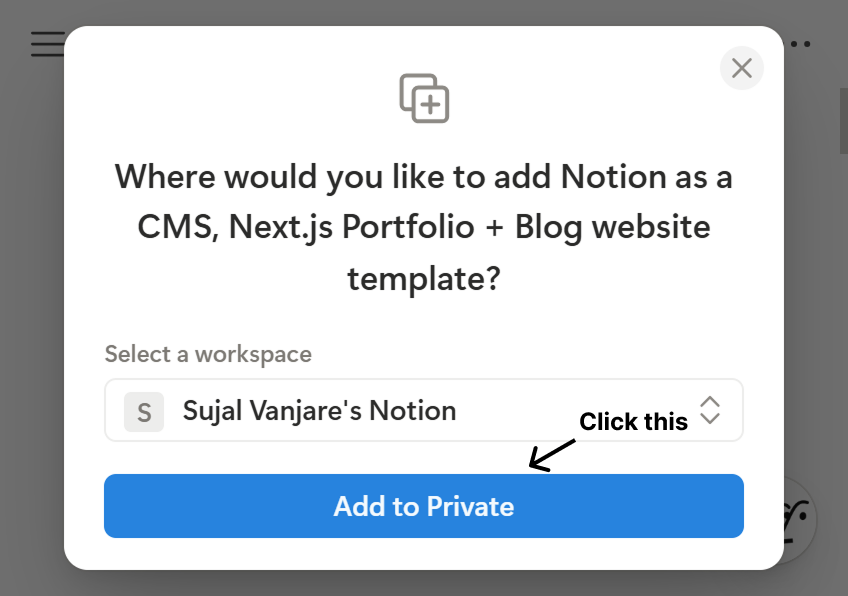
A popup will appear asking where to add the template.
- Choose your workspace
- Click the Add to Private button
Notion will now start duplicating the template.
Step 4. Wait for Duplication
The duplication usually takes 2 to 4 seconds.
Once it finishes, you will see a black message box at the bottom left that says:
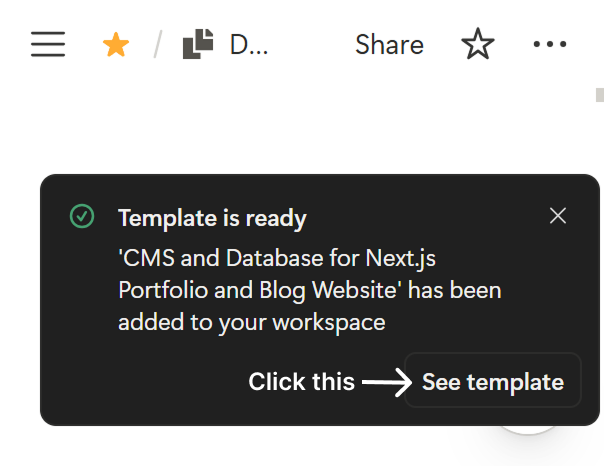
Template is ready
Inside that message, click the See template button.
Step 5. Open Your Template
You will now be redirected to your own copy of the template inside your Notion workspace.
This is your editable version. You can now start customizing it for your website.
Done
Your Notion database template is now successfully duplicated and ready to use.
Next