How to Add Dark Mode in Next.js 16 with Tailwind CSS v4 & JavaScript
Learn how to add dark mode in Next.js 16 using Tailwind CSS v4 and JavaScript. This step-by-step tutorial covers setting up next-themes, creating a theme toggle button, configuring Tailwind for dark mode, and integrating it in your app. Perfect for developers looking for a practical, working dark mode implementation in Next.js.
Posted by@Sujal Vanjare
Published on @
Updated on @
Sujal Vanjare
Adding dark mode in Next.js is very easy and simple.
Here’s a simple step-by-step guide to get started:
If you want to skip the steps, you can directly clone the repository here
Open that folder in VS Code and run this command in the terminal:
Using pnpm
TypeScript
npx create-next-app@latest.
Using npm
Bash
pnpm create next-app@latest .
Using . installs Next.js in the current folder.
During installation, you will see the following prompts:
Bash
√ Would you like to use the recommended Next.js defaults? » No, customize settings
√ Would you like to use TypeScript? ... No / Yes
√ Which linter would you like to use? » ESLint
√ Would you like to use React Compiler? ... No / Yes
√ Would you like to use Tailwind CSS? ... No / Yes
√ Would you like your code inside a `src/` directory? ... No / Yes
√ Would you like to use App Router? (recommended)... No / Yes
√ Would you like to customize the importalias(`@/*` by default)? ... No / Yes
√ What importalias would you like configured? ... @/*
Creating a new Next.js app in..
What to select:
Choose “No, customize settings” when asked about recommended Next.js defaults (use ↑ ↓ arrow keys)
Choose No for TypeScript (use ← → arrow keys)
Choose Yes for ESLint (optional but recommended)
Choose No for React Compiler
Choose Yes for Tailwind CSS
Choose Yes to use the src/ directory
Choose Yes for App Router
Choose Yes to customize the import alias
When asked for the import alias, just press Enter to use the default @/*
That’s it. The project will now install.
Open the created project directly in VS Code
if you install through directly inside folder, then skips this , After the installation completes, you may be in the C or D drive, or any other folder or directory.
To open the created project in VS Code, run the command below in same terminal
Bash
code dark-mode-nextjs-tailwind-css-app -r
If your folder name is different, replace dark-mode-nextjs-tailwind-css-app with your own folder name.
If you have other components like Navbar or Footer, make sure they are also wrapped inside it (the whole content), but not the <html> or <body> tags.
Don’t wrap the <body>or <html> with ThemeProvider
In the App Router, <html> and <body> are required structural elements and must stay at the top level of layout.jsx. Wrapping them with a Client Component like ThemeProvider breaks the document structure and can cause hydration issues.
next-themes modifies the <html> element (adds class="dark" or a data attribute) on the client. If React is also trying to manage those same elements, it can lead to mismatches during hydration.
The correct pattern is to keep <html> and <body> static, add suppressHydrationWarning to <html>, and wrap only the content inside <body> with ThemeProvider.
Don’t worry! Wrapping your entire app with ThemeProvider (which is a Client Component) does not turn all child components into Client Components.
This works because of a pattern called Composition, also known as the “children exception”.
In Next.js, when you pass components as children to a Client Component, they keep their original type (Server or Client).
Important
Make sure to add suppressHydrationWarning on the <html> tag, like this
HTML
<htmllang="en"suppressHydrationWarning>
Why we add this?
The theme is resolved on the client, not the server.
Without this, you may see hydration warnings because the server-rendered theme and client-rendered theme can be different.
Theme Provider props Explanation:
attribute="class"
Tells next-themeshow to apply the theme.
With this option, it adds a dark class to the <html> element when dark mode is active.
This is required when using Tailwind CSS, because Tailwind’s dark mode works by checking for the .dark class.
Without attribute="class", Tailwind dark: utilities will not work with the theme toggle.
defaultTheme="system"
Sets the default theme based on the user’s system preference.
You can override this with defaultTheme="light" or defaultTheme="dark".
On the first render, the website will use this theme.
enableSystem
Allows automatic switching between dark and light mode based on the system theme.
Only use this when defaultTheme="system".
If the default theme is light or dark, don’t add this prop.
disableTransitionOnChange
Disables all CSS transitions when switching themes to avoid flicker.
This is very important and most people skip it.
If you don’t add this and you have transitions on background or colors, those transitions will run when the theme changes.
Just copy-paste the file below into your layout.jsx.
Don’t worry about the Navbar component error, we will add it in the next step.
JavaScript
import{ Geist, Geist_Mono }from"next/font/google";import"./globals.css";import{ ThemeProvider }from"next-themes";import Navbar from"@/ui/navbar";const geistSans =Geist({variable:"--font-geist-sans",subsets:["latin"],});const geistMono =Geist_Mono({variable:"--font-geist-mono",subsets:["latin"],});exportconst metadata ={title:"Dark Mode with Next.js",description:"A Next.js boilerplate with preconfigured dark mode using next-themes, featuring a one-click theme toggle in the navbar and a footer theme switcher styled and behaving like the official Next.js site. Created by Sujal Vanjare.",};exportdefaultfunctionRootLayout({ children }){return(<htmllang="en"suppressHydrationWarning><bodyclassName={`${geistSans.variable}${geistMono.variable} antialiased`}><ThemeProviderattribute="class"defaultTheme="system"enableSystemdisableTransitionOnChange><Navbar/>{children}</ThemeProvider></body></html>);}
src/app/layout.jsx
Step 4: Add theme toggle button in the navbar
Create a ui folder inside the src folder.
Inside the ui folder, create a theme-toggle.jsx file.
I have given you a best-practice theme toggle button that:
Waits for the component to mount
Uses the resolved theme
Sets a dynamic title and aria-label
Uses aria-pressed for toggle semantics
Disables interaction until the theme is ready
Just copy and paste the code below into src/ui/theme-toggle.jsx.
Add cn utility function (required for the theme toggle)
Inside the src folder, create a utils folder.
Inside the utils folder, create a class-merge.js file.
This utility is required for the theme toggle to merge Tailwind classes correctly.
First, install the required dependencies:
Using pnpm:
Bash
pnpm i clsx tailwind-merge
Using npm:
Bash
npminstall clsx tailwind-merge
Now, copy and paste the code below into src/utils/class-merge.js
JavaScript
import{ clsx }from"clsx";import{ twMerge }from"tailwind-merge";exportdefaultfunctioncn(...inputs){const classNames =twMerge(clsx(...inputs));return classNames ||undefined;// Return undefined when classNames is empty to avoid rendering the class attribute.}
src/utils/class-merge.js
Step 5: Creating Navbar and Adding Theme Toggle
In the ui folder, create a navbar.jsx file.
This navbar includes the theme toggle button you created in the previous step. Copy and paste the following code
(Optional): Add Theme Toggle in Footer Just Like Next.js
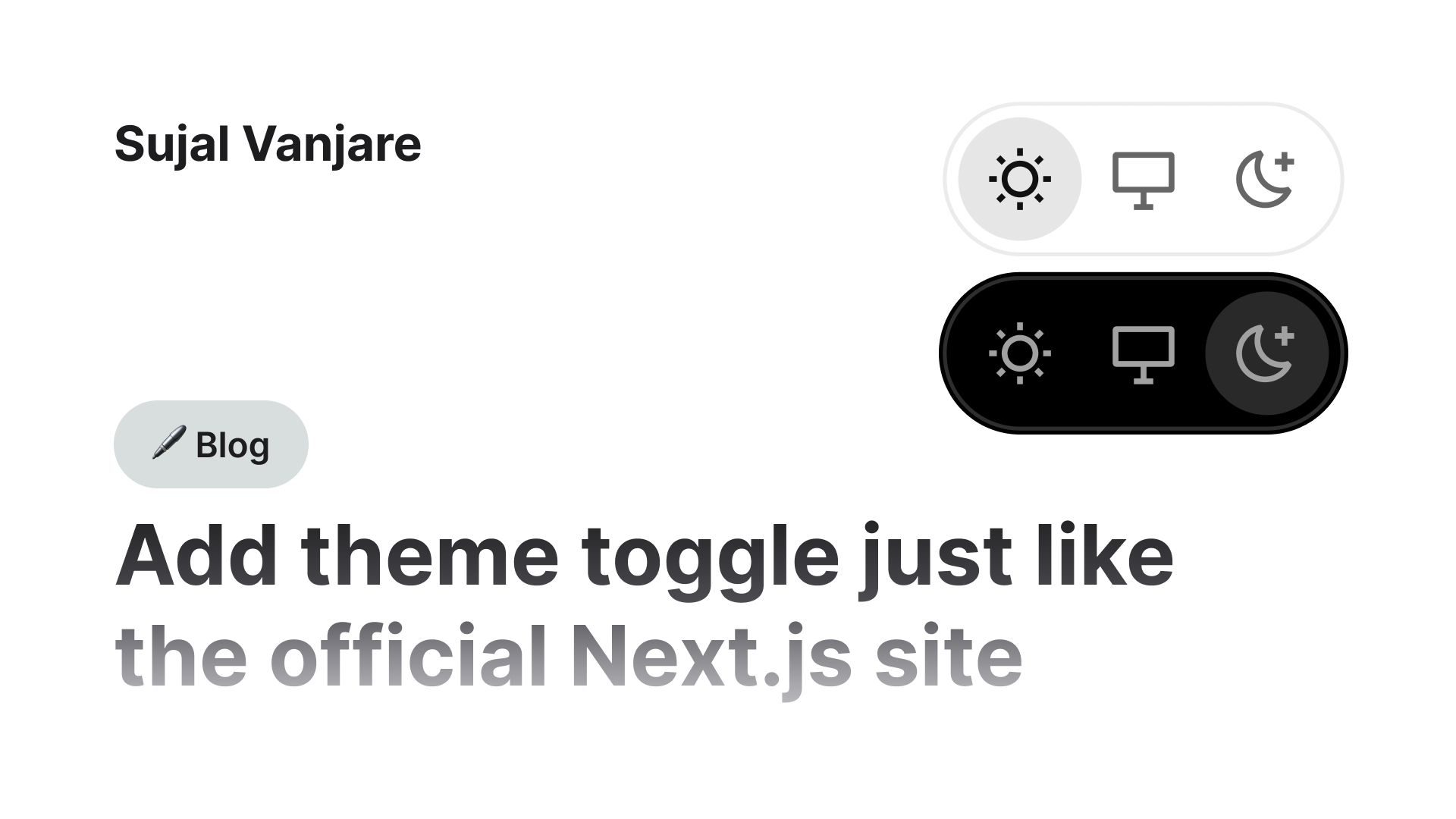
If you want, you can add the theme toggle in the footer instead of the navbar. It works exactly like the official Next.js site, both in appearance and behavior.
Step 6: Important - Enable Manual Dark Mode in Tailwind CSS
If you don’t add this, your light/dark mode won’t work with the theme toggle button; it will only follow the system (media) preference.
It’s very simple to fix: just add this @custom-variant dark (&:where(.dark, .dark *));below the @import "tailwindcss"; in your globals.css file, like this
CSS
@import"tailwindcss";@custom-variant dark (&:where(.dark, .dark *));
src/app/globals.css
This tells Tailwind to respect the .dark class applied by next-themes and makes your dark: classes work when switching themes manually.
Step 7: Add dark: Classes in Pages or Components
First, add light mode classes normally with Tailwind CSS.
For dark mode, use the dark: prefix to apply classes that should only be active when dark mode is on.
Example:
CSS
bg-white dark:bg-black
In your page.jsx, you can use it like this
JavaScript
exportdefaultfunctionHome(){return(<divclassName="flex min-h-[calc(100dvh-80px-205px)] items-center justify-center font-sans bg-white dark:bg-black"><mainclassName="flex w-full max-w-3xl flex-col items-center justify-between py-32 px-16 sm:items-start"><divclassName="flex flex-col items-center gap-6 text-center sm:items-start sm:text-left"><h1className="max-w-xs text-3xl font-semibold leading-10 tracking-tight text-black dark:text-zinc-50">
To get started, edit the page.tsx file.</h1><pclassName="max-w-100 text-lg leading-8 text-zinc-600 dark:text-zinc-400">
Looking for a starting point or more instructions? Head over to{" "}<atarget="_blank"rel="noopener noreferrer"href="https://vercel.com/templates?framework=next.js"className="font-medium text-zinc-950 dark:text-zinc-50">
Templates
</a>{" "}
or the{" "}<atarget="_blank"rel="noopener noreferrer"href="https://nextjs.org/learn"className="font-medium text-zinc-950 dark:text-zinc-50">
Learning
</a>{" "}
center.</p></div></main></div>);}
src/app/page.jsx
Step 8: Start Your Development Server and Test It
Open the terminal, run the command below.
Shell
pnpm dev
Using npm
Shell
npm run dev
Then check your site at http://localhost:3000 and test the dark/light toggle.
Done! You’ve Successfully Added Dark Mode in Next.js
Creating detailed tutorials like this takes a lot of time, and I don’t run any Google ads on my blog so you can follow along easily without distractions.
If this guide helped you and you’d like to support my work and future tutorials, please consider:
Every bit of support helps me create more high-quality tutorials just like this. Thank You for your support.
How to Add Dark Mode in Next.js 16 with Tailwind CSS v4 & TypeScript
Learn how to add dark mode in Next.js 16 using Tailwind CSS v4 and TypeScript. This step-by-step tutorial covers setting up next-themes, creating a theme toggle button, configuring Tailwind for dark mode, and integrating it in your app. Perfect for developers looking for a practical, working dark mode implementation in Next.js.






JavaScript.
TypeScript, check out this blog

How to Add Dark Mode in Next.js 16 with Tailwind CSS v4 & TypeScript
Before you begin, make sure you have Node.js version 20.9 or above installed on your system.





 You’ve Successfully Added Dark Mode in Next.js



 for your support.