Add Your First Blog Post (Understanding Blogs & Archives)
In this guide, you’ll learn how to create, edit, manage, and archive blog posts for your Notion CMS–powered portfolio website.
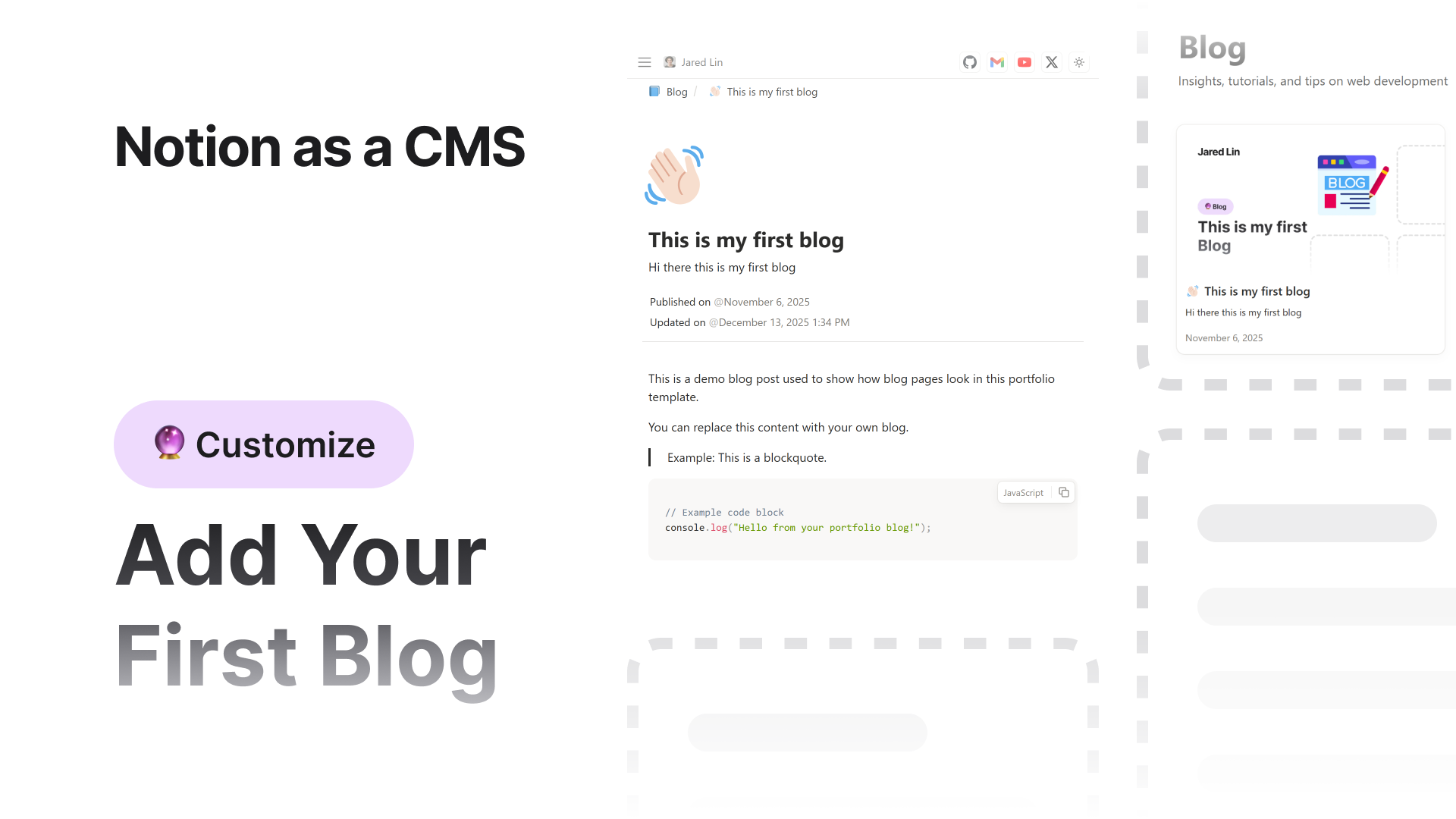

The blog system is fully connected to your Notion database - everything you write or edit in Notion, automatically updates on your live site (when you redeploy).
Step 1: Understand the Blog Home Page
Before adding your first blog post, let’s quickly understand how the blog homepage works.
Your Blog Home Page is the page that lists all your blog posts in blog cards.
This page has a category set to  Blog Home .
You can edit this page like any other Notion page - it has fields for Title, Description, Thumbnail URL, SEO Title, and SEO Description.
If you add any content blocks inside this page in Notion, that content will appear above the blog cards section on your site.
You can use this area for an intro text, a quote, or even a short paragraph about your blogs.

Step 2: Blog Home Page Details
In your Notion database, we’ve already added a pre-filled blog home page with:
- category → Blog Home
- route →
/blog - Default sample seo metadata and layout config (what properties to show & hide)
You can change the route if you want (for example, /articles or /news),
but make sure that:
- Only one page in your database has the Blog Home category.
- That page will automatically be used as your main blog listing page.
Step 3: Find Your First Blog Page
We’ve also added one demo blog post for you to get started.
You’ll find it in your database titled:
“This is my first blog”
This is your sample post.
Open it, explore the content, and you’ll see how it matches what’s displayed on your site - exactly as it appears in Notion, including headings, text blocks, lists, and images.
Step 4: Create a New Blog Post
To add your own blog post:
- 1.a.i.In your Notion database, create a new page.
- 2.b.ii.Set the Category property to
 Blog .
- This tells the system that this page is a blog post.
- 3.c.iii.Add your content - headings, text, images, quotes, or embeds.
- All Notion blocks are supported and will be displayed exactly as you see them in Notion.
- 4.d.iv.Add or edit the following fields for SEO and visibility:
- Title : Blog title
- Description : Short summary shown in the blog card
- Thumbnail URL : Featured image for your post
- Status : Set to
 Published to make it visible on the site
 - Published Date : When your blog went live
- Route : The URL path for your blog post
 Important:
When adding the Route, always make sure it starts with your blog home page route.
For example:
- If your blog home page route is
/blog, then your post route should look like:Plain Text/blog/my-first-post - If you changed your blog home route to
/articles, then your post route should match that, like:Plain Text/articles/my-first-pos
This keeps your blog URLs organized and ensures that navigation and breadcrumbs on your website work correctly - letting users go back to your blog home page easily.

Step 5: View All Blog Pages
Once you’ve created your Blog Home page and added a few blog posts (with the Blog Home and Blog categories),
you’ll see all of them listed neatly in your main Notion database under the Blogs Table View.
To check:
- 1.a.i.Go to your Main Database.
- 2.b.ii.On the top navigation tabs, click Blogs.
- 3.c.iii.This view will show only your Blog Home and Blog Post pages - making it easy to manage and update them.

Step 6: Done
That’s it! 
You’ve successfully added your first blog post.
Your post will now appear automatically under the Blog Home page, displayed as a card with its title, thumbnail, and short description.
Clicking on it will open the full blog page with all your Notion content.
Bonus Tip
You can add as many blog posts as you like - just make sure each post has:
- Blog category
- Published status
- A unique route
Everything else is synced automatically from your Notion workspace.
How to Archive Blogs
As your site grows, you may need to update older blogs, especially for content like coding tutorials.
For example:
- You wrote a blog for Next.js 15
- Later, Next.js 16 is released
Recommended Approach (Best Practice)
 Do not update the old blog and change its route
This can break URLs (e.g., /nextjs-15) and negatively impact SEO.
Instead, follow this approach:
- 1.a.i.Keep the old blog post as-is.
- 2.b.ii.Create a new blog post for the updated version (Next.js 16).
- 3.c.iii.Add a link to the new blog at the top of the old blog post.
- 4.d.iv.Change the old post’s Category to
 Archive .
What Happens After Archiving?
- The archived blog will not appear on the main Blog Home page.
- Instead, it will appear on a separate Blog Archive page.
If you have at least one archived blog, a special button will automatically appear on the Blog Home page below all blog cards, allowing users to navigate directly to the Blog Archive page after viewing all current posts.
You can find the Blog Archive Home page in the same Blogs tab of your Notion database.
Its title is Blog Archive, and it uses the Blog Archive Home category.
This page works exactly like the Blog Home page. You can edit its Title, Metadata, and Route in the same way you configured the Blog Home page.
Archive Route Example
If your Blog Home route is: /blog
Then your Blog Archive Home page route should be: /blog/archive
If you changed your Blog Home route to: /articles
Then update the Blog Archive Home page route to: /articles/archive
This keeps the content flow clean, organized, and SEO-friendly.
 Back
Back