Add Your First Project or Template
In this guide, you’ll learn how to create a project or template in Notion, configure its price and shop link, and display it on your site with a buy button and detail page.
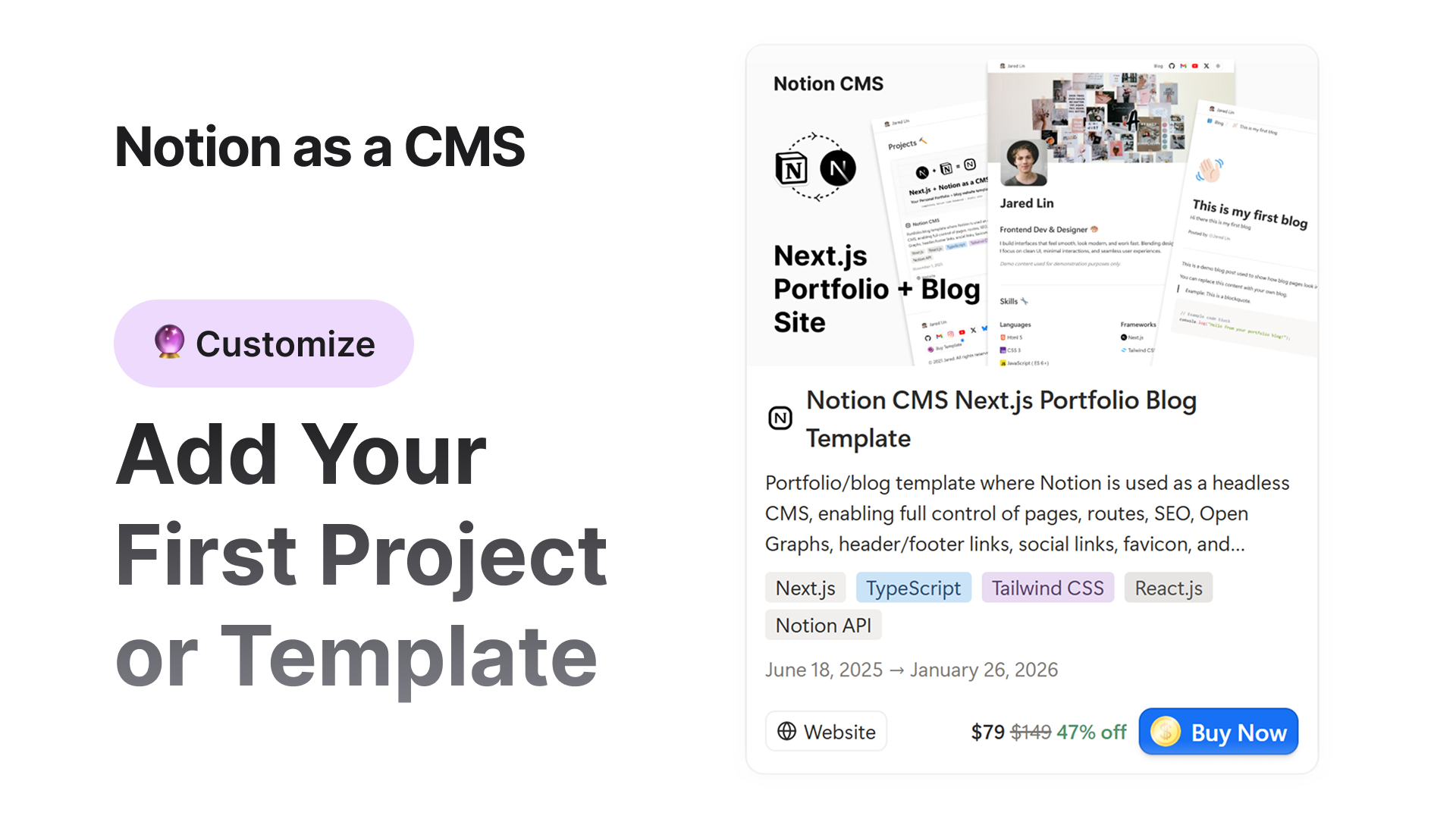
Your projects will appear in the Projects  section on your homepage.
Step 1: Locate the “Projects ” Section
Scroll to the end of your Home Page (first page in your notion database) in Notion.
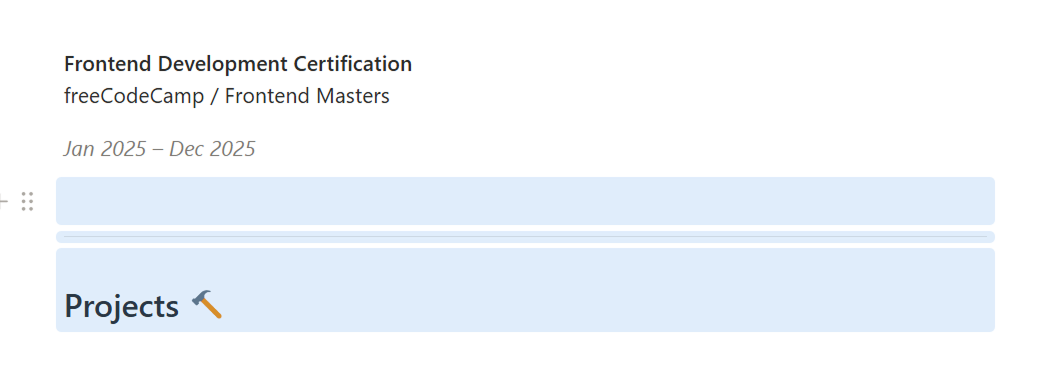
You’ll see a heading named Projects - below this, your portfolio projects will be displayed on your site.
You can rename this heading to anything you want (for example: “My Work” or “Featured Projects”).
- Just make sure this block is a Heading 1, Heading 2, or Heading 3 block.
- Followed by no content blocks directly underneath it.
- If you need some space, just add empty paragraph blocks below.

If you don’t want to show the Projects section at all:
- Simply delete the “Projects” heading block from your Home page.
- And set the Status of all your projects pages (existing projects data)
statusto something other than Published ( set to
  Draft or
  In Progress).
- with this projects and project section will not shown in home page
Step 2: Open the Projects View in Your Database
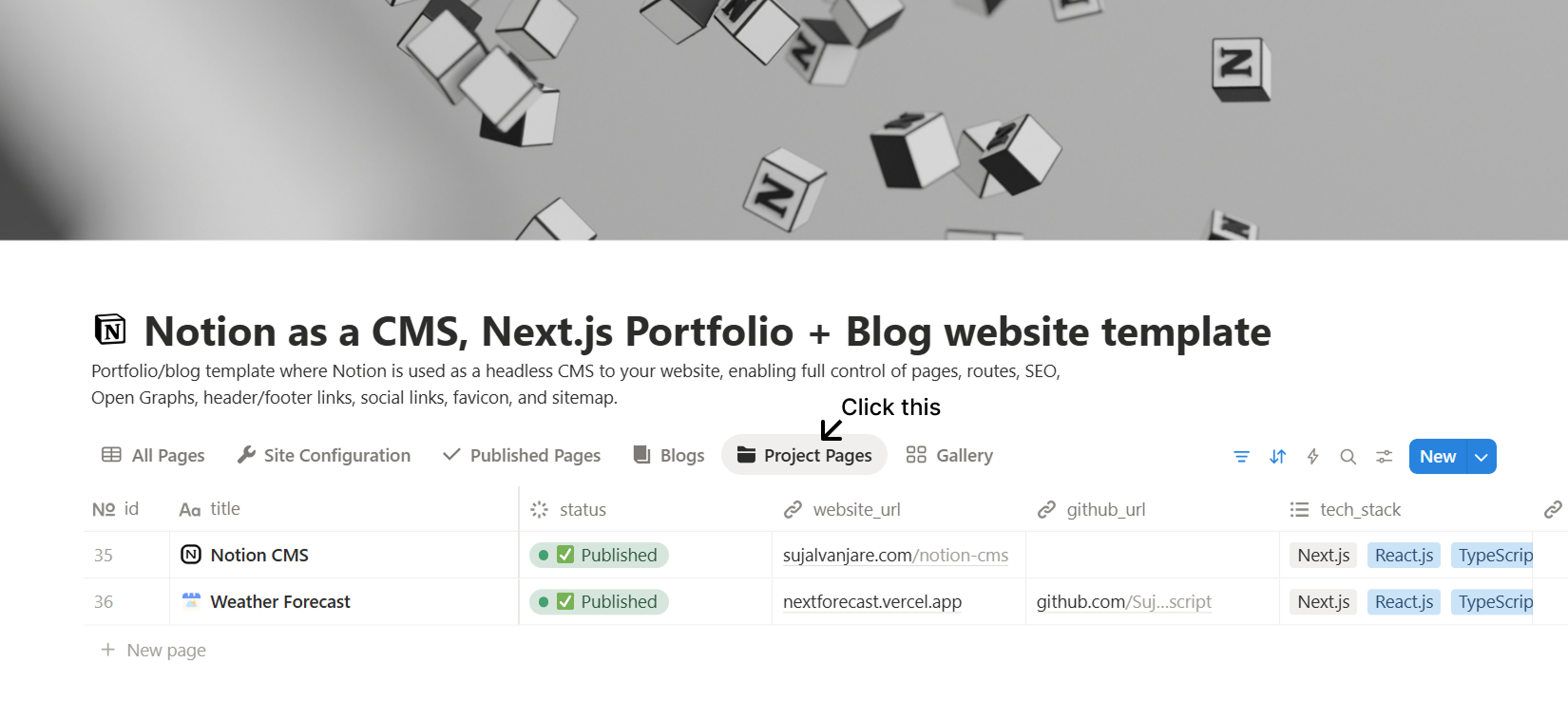
In your main Notion database, look at the top tabs (table views).
You’ll see options like:
All Pages, Site Configuration, Published Pages, Blogs, Project Pages, and Gallery.
Click on Project Pages.
This view shows only your project pages.
You’ll see two default project pages - these are examples to help you understand the format.
Step 3: Edit an Existing Project or Add a New One
You can either edit one of the sample projects or create a new one.
The structure is the same as other pages.
Here’s what to edit or add:
- Title: The project name (e.g., “Personal Portfolio Website”).
- Description: A short summary of your project.
- Thumbnail URL: Upload or paste an image URL - this is used in the project card and Open Graph meta.
- Website URL: Add your live project link (optional).
- GitHub URL: Add your repository link (optional).
- If these links are empty, the “Website” and “GitHub” icons won’t appear on the card in the UI.
Step 4: Add Your Tech Stack
In the Tech Stack property, add the technologies used in the project (e.g., React, Tailwind, Next.js).
You can create new options or remove the default ones.
These will appear as tags or badges on your project card in the UI.
Step 5: Assign the Correct Category
To make a page appear as a Project, the Category must be set to:
 Project (blue color option).
If this category isn’t set, your project won’t appear on the homepage under the Projects section.
If you want to remove all projects from the homepage, simply remove this category from all project pages.
Step 6: Set the Publish Date
In the Published Date property, select the date you finished or released the project.
You can also enable the “End date” toggle in Notion and add your project’s end date if you want.
Step 7: (Optional) Create a Project Details Page
If you want users to open a detailed case study for a project, add a route for that project.
The route can be any unique slug, for example:
/projects/portfolio-siteOnce added, your project card will automatically add a link to section (below the project image).
Clicking it will open the individual project page on your site with the full details (where you can add case study of the project).
All the page properties for this project will work exactly like other pages - including SEO title, SEO description, cover image, and author.
Step 8 (Optional): Sell a Project as a Template
You can turn any project into a template and sell it.
To do this, add the  Template category to the project. Once added, the project becomes a template.
Make sure to also add the shop_link and price properties.
The shop_link must point to an existing product page, for example on Gumroad, Buy Me a Coffee, or another platform.
In the price property, you can add styled text. For example: $79 $149 47% off
After this:
- The project will appear as a Template Card with a special “Buy Template” button and the price
- The project detail page will also show the buy button and price with a clean UI
Any page with the Template category will appear in the Templates tab view in your Notion database.
I have already added demo project data. The first project is a template, so you can see how it works. You can also check the Templates tab view in the Notion database, where all templates are listed.
There is also a Template Home page with the  Template Home category. On this page, all template cards are shown on your site. This page is enabled by default. If you do not want it, simply remove the Published status from that page.
Step 8: Done
That’s it! 
You’ve added your first project to your Notion CMS.
Your project will now appear on your homepage under the Projects section and can include links, tags, and even its own case study page.
 Back
Back