Set Up Social Links in Navbar and Footer
Add your social media links to the navbar, footer, or both. This helps visitors connect with you easily and keeps your portfolio personal and professional.
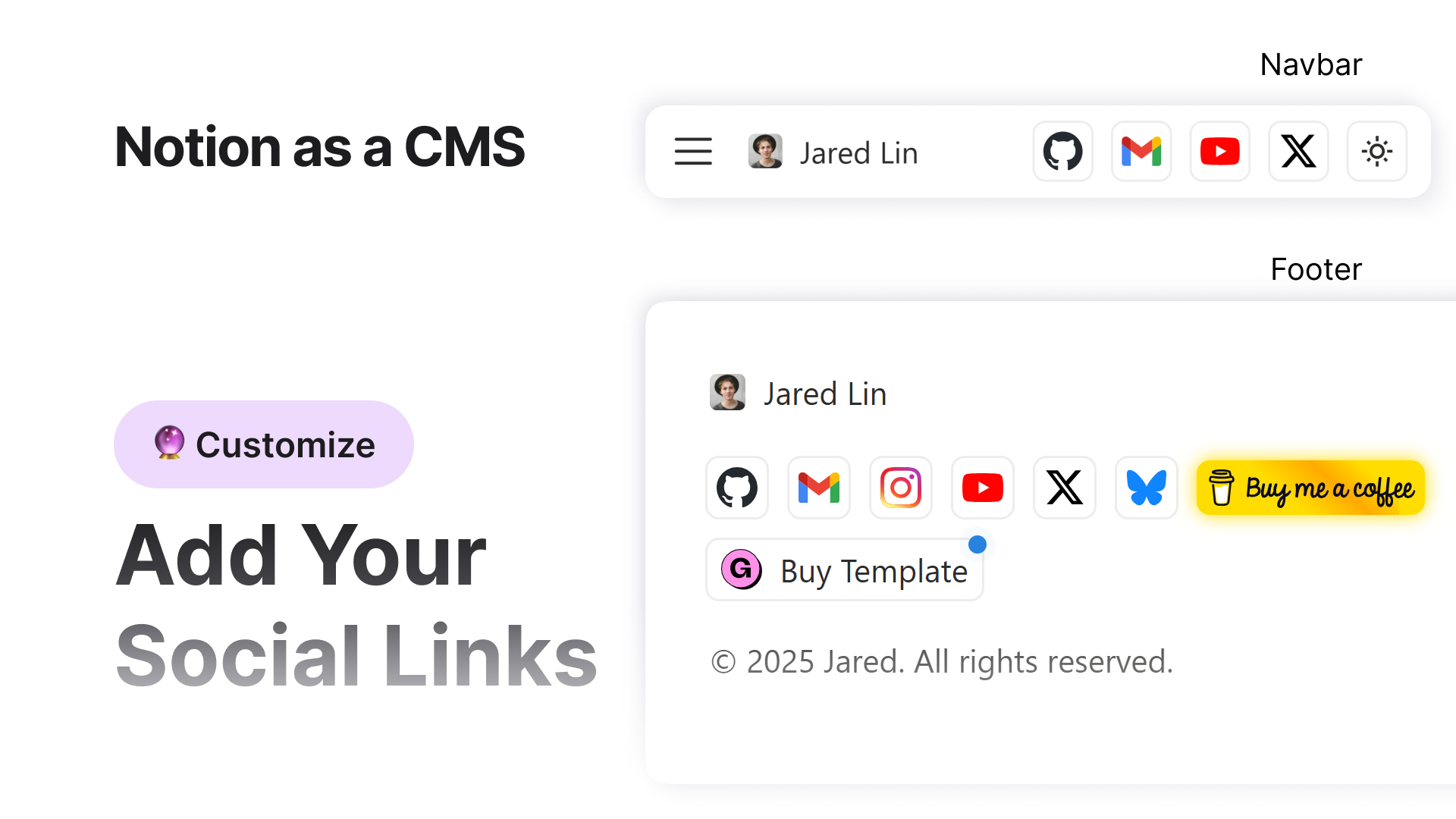
Your template already includes support for many social platforms. Once you add your links, the icons will automatically appear in the navbar, the footer, or in both places depending on your settings.
Step 1: Open the Site Configuration View
Go to your main Notion database.

At the top of the table, select the view named Site Configuration.
Scroll to the bottom of the list. Here you will see all supported platforms such as:
- GitHub
- LinkedIn
- Gmail
- Medium
- Patreon
- Instagram
- Threads
- Dribbble
- Pinterest
- Figma
- YouTube
- TikTok
- Twitch
- Snapchat
- X (Twitter)
- BlueSky
- Reddit
- Facebook
- Signal
- WhatsApp
- Buy Me a Coffee
- Buy Template on Gumroad
Only these platforms are supported for now.
If you need a platform that is not there, contact me. I will add more in future template updates.
Step 2: What These Rows Mean
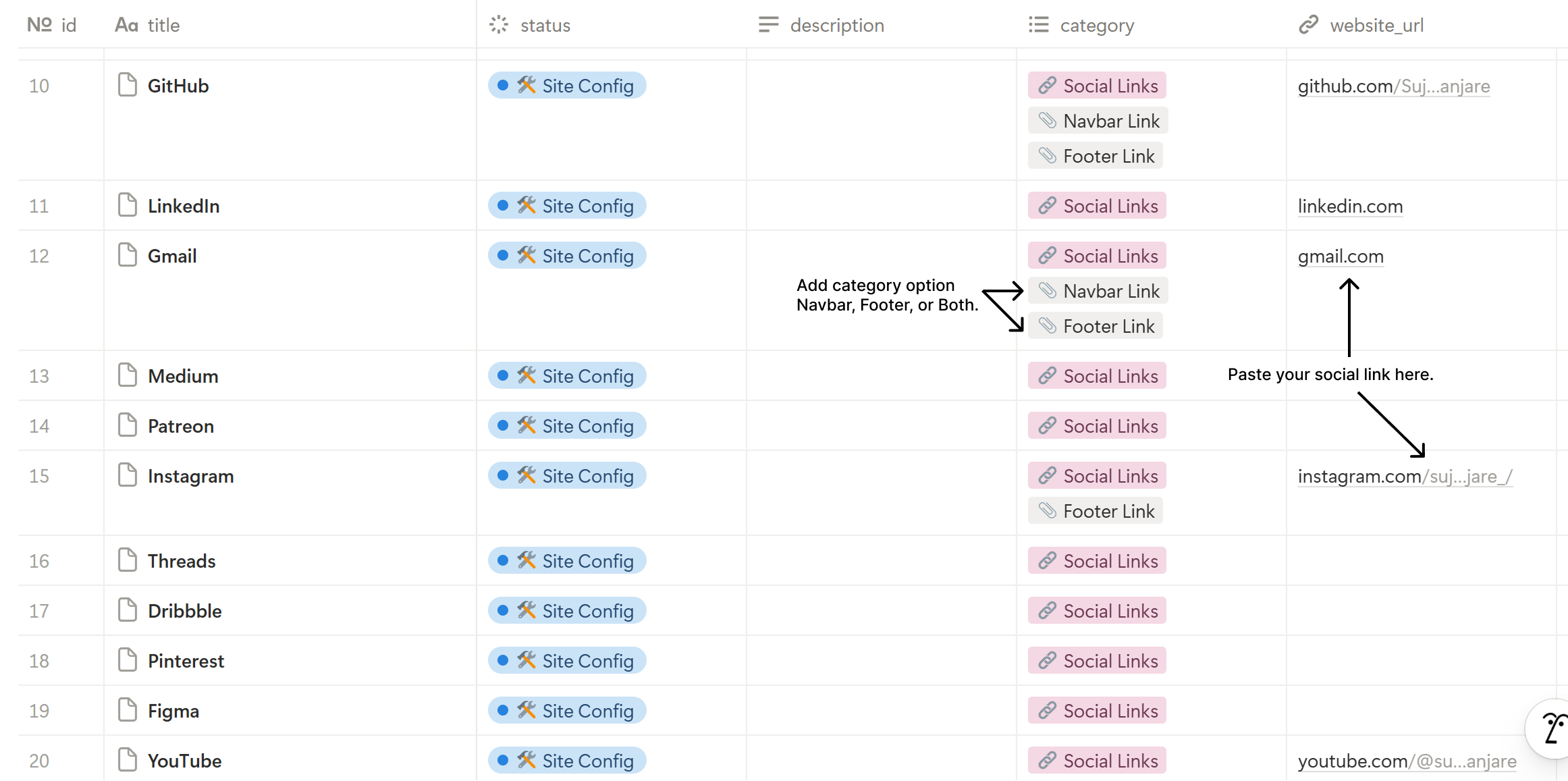
Every row with the category  Social Links represents one social profile.
These are not blog posts, project pages, or regular pages. Their only purpose is to display icons on your live site.
Step 3: Add Your Link
Open any platform you want to activate.
For example: GitHub, Instagram, YouTube, etc.
Find the property called Website URL.
Paste your profile link there. For example:
https://instagram.com/yourusernameIf this field is empty, the platform will not appear anywhere on your site.
Step 4: Choose Where It Appears
Use the Category property to control visibility.
Here is how it works:
| Category | What happens |
|---|---|
 Navbar Link Navbar Link | Shows in the navbar |
| Footer Link | Shows in the footer |
| Both | Shows in both navbar and footer |
| Empty | Hidden on the site |
You can activate only the platforms you want and ignore the rest.
Step 5: Icon Styling and Animations
Once your links are set, the platform icons will automatically appear on the published site with:
- Clean matching icons
- Hover effects
- Smooth interaction feedback
- New tab opening for better user experience
Two icons have a special subtle animation:
- Buy Me a Coffee
These has a cool background color animation to help draw attention to your support link
- Buy Template on Gumroad
These has a small blinking dot to help draw attention to your store
Step 6: Extra Fields for X (Twitter)
You will also see two additional fields:
- X (Twitter) Creator Handle
- X (Twitter) Creator ID
These are not for the navbar or footer. They are optional SEO settings for X (Twitter) metadata.
You can fill them in if you want, or leave them empty.
Step 7: Done
Once your links and categories are set, your icons will appear automatically. No extra setup needed.
You now have working social links that help visitors connect with you in one click.
Next